----------------------------------------------------------------------------------------------------------
Question:
I've got this
ELi73 Demo, but i want to make it windows media so it can be viewed
without
Quake 3; how would I do that?
first things
first...
There are some things you are going to want/need to type into
the console to record the frames for production.
----------------------------------------------------------------------------------------------------------
/cl_avidemo
1
---> Will turn on the function of writing the consecutive screenshots
to the hard disk (TGA format)
*** Note: /cl_avidemo ##
will set the ammount of tga files that get written to the hard disk every
second.
ex. /cl_avidemo 1 will do the default, /Cl_avidemo 15 will drop 15
screenshots every second.)
/timedemo 1
---> a good idea to
record in timedemo, that way you get a fixed framerate, not a variable one that
is
arbitrarily based on your video card can pump out...
*** Note: This is *not* neccissary if you use "cl_avidemo ##"
(where ## = desired frame rate)
/cg_drawgun 0
--->
unless you want the gun there?
/cg_draw 2d 0
---> this removes
*everything* 2d that gets drawn on the screen, text, health, crosshair;
everything!
/demo demoname
---> play the demo of course
<g>
----------------------------------------------------------------------------------------------------------
*** Note:
You only have room for 10000 screen shots due
to the screen shot naming convension quake3 uses... it only
translates to
About 8 min 20sec of action... so if you have a long demo, you can't do it
without doing
multiple takes and then splicing them together (you can bind a
key to perform screenshot proceidure in the
middle of the demo, "bind *key*
cl_avidemo xx)
You need short demos for things to work properly. Which brings
me to Filesize:
It is very important to be in a low res (640x480 or lower).
If you're running in 1280x1024 you WILL fill your hard
disk mighty quick.
(the shots will be about 2meg per frame @ 20 frames per second!)
In 512x384
you get a really decent size image @ 598k / frame ... so @ the max of 10000
shots you would only use
about 6 gig for the full 8:20 of action...
(1024x768 and you're looking at around 12gig)
----------------------------------------------------------------------------------------------------------
Question:
I've ran the demo
and now my screenshot dir has 200 TGA files in it, what now?
Get:
bmp2avi
BMP2AVI
is a great little program that uses codecs on your system to wrap TGA or BMP
images into an AVI.
This is what I do:
.-----==========================-----.
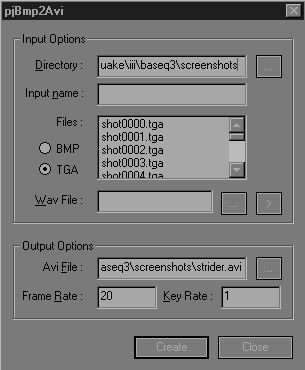
([-
Main screen of bmp2avi -])
'-----==========================-----'
.-----------.
on the "directory" line is where your
screen shots are located... (you can click the |...| button to browse
to
where your screenshots are located).
.-----------.
Directly below that you won't see anything
until you click the "TGA" button... then you should see
shot0000.tga
shot0001.tga
shot0002.tga
etc...
*** if you don't, then your not in the correct directory,
or quake didn't save the screens
.-----------.
don't worry about the wav file line...
(i'll mention sound later)
.-----=======-----.
.:Output optoins:.
.-----------.
The "avi file" line will default to saying
"out.avi"
Feel free to change that to whatever you want.
if you give no
path information the avi file will be put it in the same directory as the screen
shots
were loaded from.
.-----------.
From what i've tested, cl_avidemo seems to
dump @ 20fps ... so i put 20 in the "frame rate" line to get as
close to
'accurate' as possible.
.-----------.
Leave the "key rate" at 1
.-----------.
Click on |Create|
.-----==========================-----.
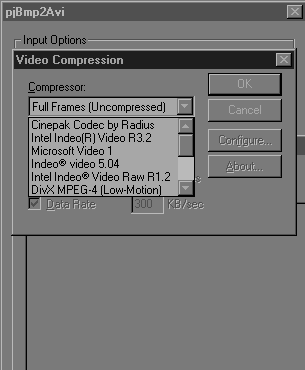
([- This is the next thing
you will see -])
'-----==========================-----'
I DO NOT
recommend using "full frames (uncompressed)."
--> For some reason the
program doesn't create the avi correctly if its not pumping thorough a codec.
.-----------.
-> pick "microsoft Video
1" from the drop down.
*(every pc past windows 95 has
this, its fast and has loss-less quality if you follow these criteria)
.-----------===========================-----------.
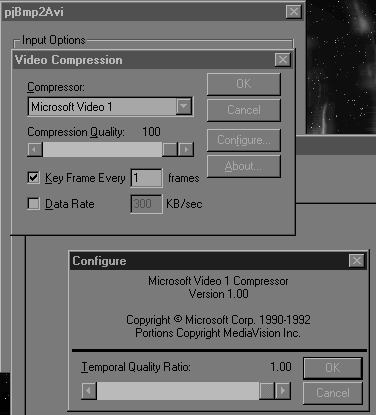
([-
This is what I recomend -])
'-----------===========================-----------'
.-----------.
-> uncheck "data rate"
->
crank the "compression quality slider" to 100
(this will
do 100% quality and 0% compression...we'll worry about compression
later)
->leave "key rate" checked and at 1
-> click
|configure...| (another window below will pop up...)
-> Crank the "temporal quality ratio" slider to 1.00
(this will do 1:1 quality as the TGA source, we don't want ANY
loss in image quality *yet*)
-> hit |ok| in the configure window
-> and |ok| in the video compression window
-> wait for it
to finish compiling the avi.
----------------------------------------------------------------------------------------------------------
Question:
Ok; so now i have
this big avi, looks real pretty. What about the audio?
If you
compressed the AVI to an ASF you would have a very small neatly packaged silent
movie...
But; since you ask about the sound...
.-----=======-----.
..::
Sound ::..
If your like me and do a decent amount of audio what-not; you
have SoundForge 4.5.
With soundforge you can "listen" to the directsound wav
output and record a wav of the demo's audo track.
(i'm sure there are other
programs to do this, but i happen to have soundforge and therefore i will give
an
example relating to soundforge.)
.-----------.
In soundforge:
-> hit the record
button...
-> click on the 'remote' button.
*** now... Here is probably The ONLY time you will ever run
quake 3 in 'windowed' mode <g>
.-----------.
To get into 'windowed mode' :
->
Bring down the console (~)
-> Type "r_fullscreen 0";
[enter]
-> Type "r_mode 1";
[enter]
** (here is another time i
recomend something low .. like r_mode 2 or lower)
-> type
"vid_restart"; [enter]
** you will now
have a small window on your desktop running quake.
.-----------.
Now you should have a little soundforge
record remote floating on the desktop
and a quake 3 window at the
menu..
-> bring down the console... (~)
(this
will give you a windows mouse cursor again so you can click on other stuff in
windows (like the record button))
anything you do on the
keyboard will be typed in the console in quake however.
-> make sure
timedemo is 0
->/set s_khz 22
-> /set s_musicvolume 0
(unless you want the music?)
-> /set s_volume 1 (anything past 1 will
cause the audio to 'clip')
*** back
in windows ***
-> open your sound control panel
(most likely a 2x click on the little speaker in the sytem
tray)
-> make sure your 'wave/direct sound' slider is NOT maxed.
(i recomend about 50-70%)
-> do the same volume
setting for the "play control" master volume setting... (you
can always safely bump the volume of the audio in soundforge by normalizing to
peak values)
*** if you DONT do this
you will get distored and clipped audio when soundforge records. ***
.--------------===================+++++++++++++==================--------------.
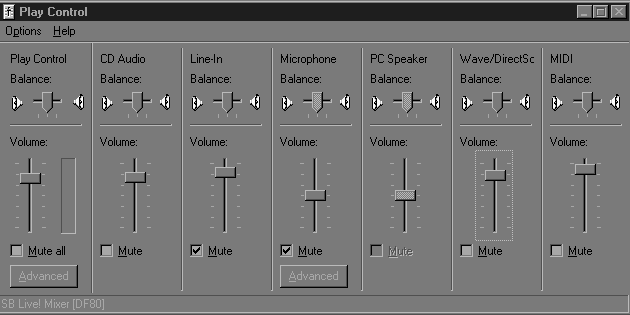
([-
People's exhibit 5B your honor -])
'--------------===================+++++++++++++==================--------------'
.-----------.
-> click the shiny red 'record' button
in the soundforge remote.
:: back in the q3 console,
type:
-> /demo demoname
-> wait until the demo is done...
-> click the [] Stop button
-> quit quake and hit "close"
on the remote
-> soundforge of course opens back up with the wave form
in an 'untitled' file
-> crop all the 'flat line' before and after
the demos audio.
** highlight then Ctrl+T
->
Normalize peaks if desired or neccissary
-> save wav file
----------------------------------------------------------------------------------------------------------
Question:
So now I have this
wav file and this avi file... what do i do with them?
Get: VirtualDub
1.4d
(probably the best freeware video
editor)
.--------------===================+++++++<>++++++==================--------------.
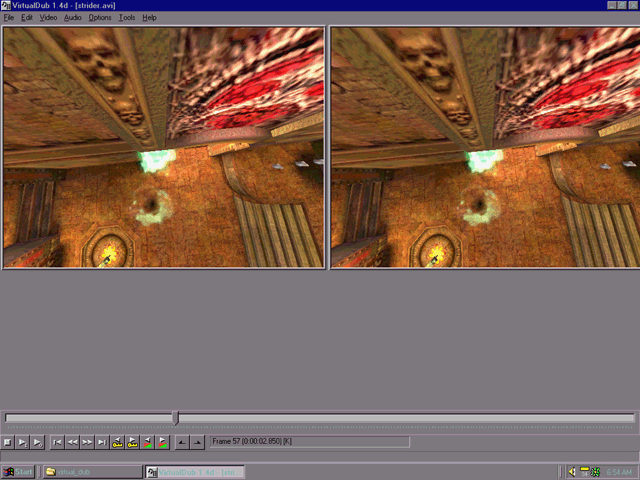
([-
People's exhibit 17D your honor -])
'--------------===================+++++++<>++++++==================--------------'
.-----------.
-> Open the AVI file you made form the
TGA screen shots...
-> click on Audio | WAV
audio
an open dialog box will pop up, navigate to where
you saved your .wav of the audio track and 2x click it.
-> You will
now have the video and audio mixed... (probably not matching up
though)
-> if you press the "play output" button then you can see the
video with the (most likely) out of synch audio.
.-----------.
Basically its pretty much narrowing down
and educated trial and error to get the audio to synch up at this point.
Thier are two things you can use to synch the length of the wav with the
length of the avi.
(1) The Audio Skew correctoin
----> hit
Ctrl+I
This will pop up the
"audio/video interleave options."
you
will see a field for delaying the audio track. (use positive numbers if the
audio is playing too early, and
negative
numbers if its playing too late) You can fiddle with this until the audio seems
to be starting at the right time
***
don't trust the play button... I find that when i render the output the sound
synch is different than the live preview ***
(2) Once you have the
first *event* synched up with the frame of video that sound happens on, you can
adjust the 'speed'
of the video if the sounds aren't all
matching up correctly.. (like say the audio at the end seems to be
lagging behind the video)
----> hit
Ctrl+R
This will open up the 'frame
rate' dialog.
From here you can specify
a 'custom' frame rate to adjust for the sound outrunning the video or the video
outrunning the sound.
(increase the
frame rate a small ammount if the sound is getting ahead of the video toward the
end
and decrease it if the video is out
running the sound)
.-----------.
using
'key sounds' to try and get them to match up with the corrosponding video is the
longest process and quite
a pain in the arse... (you basically have to futz
around until it looks right)
*** Note:
about rendering the AVI output
.----------==================++++++++++================----------.
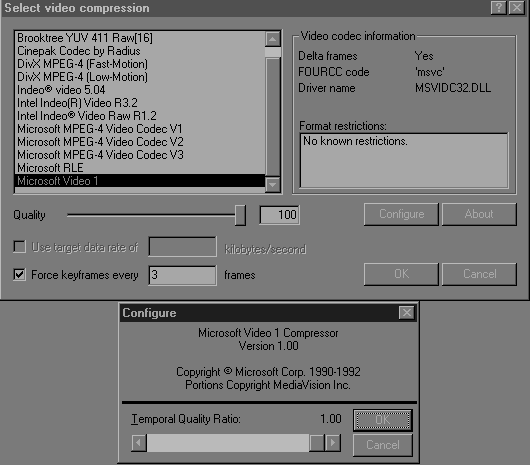
([-
Ctrl+C, or Video | compression -])
'------------=================++++++++++================-----------'
Same
options as before...
-> Ms video 1
-> 100% quality,
-> 1.00
temporal quality
-> (the key frames control the fast foreward in the ms
video player, video compression times do get a pinch faster
with a higher key value
----------------------------------------------------------------------------------------------------------
Question:
Ok... so now I
have a Very big AVI... what about making it smaller?
Get: Windows
Media On-Demand Producer
- made by microsoft and
sonicfoundry (free)
.-----------..
On-demand producer is a fine app...
it will take that avi and chunk it into a very, very small mpeg4 .asf file.
I won't go into detail on that, they have plenty of templates for different
qualities, but i recomend
playing with the options to get the proper output
frame rate and file size you desire.
(i've gotten 640x480 captures off
my tv to be only 1 meg / min ...
it;s amazing how far video compression has
come now a days)
in a nutshell you just open your AVI, then hit the big
red 'record windows media' button.
then hit custom and play with the
options
*** Note:
you will most likely want
to go into the 'settings' for the Mpeg4 codec and set the output frame rate to
the same frame rate as your AVI. The program defaults to 15 fps.
After the ASF is written and you're happy with it. Delete all the
"shotXXXX.tga" files and the two
Big honkin AVIs
----------------------------------------------------------------------------------------------------------
I
will mention that you can just use VirualDub to compress to an ASF if you have
the mp4 codecs installed.
you can also use On-Demand for all of the Sound
Editing... (on-demand has a really nice editing setup,
If i was to really
get heavy into doing this i would probably do all my Post editing in On-Demand.
It's all
a matter of personal preference.
.--------------===================+++++++<>++++++==================--------------.
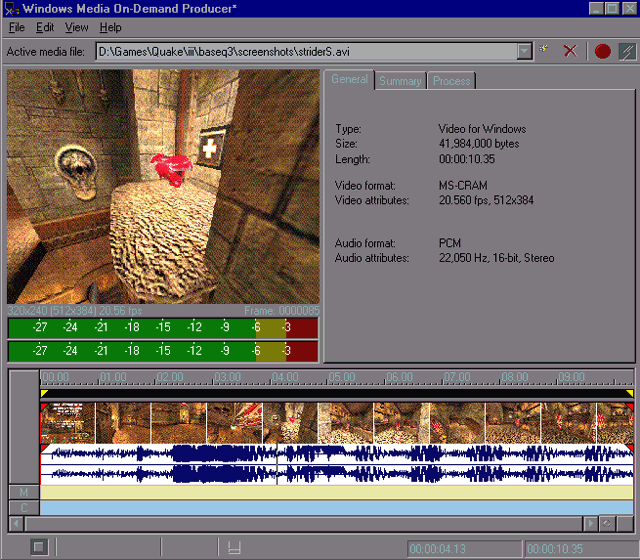
([-
People's exhibit 22W your honor -])
'--------------===================+++++++<>++++++==================--------------'
----------------------------------------------------------------------------------------------------------
Finished
Example
( 833 K )
Finished Example
(2)
( 1072 K )
I made these flics while writing this... just to
make sure i wasn't missing steps.

last updated 04.25.2001